Setting up a dedicated Pinterest Business Account is the mandatory foundational step for any creator, blogger, or brand serious about driving measurable organic website traffic. Unlike standard personal accounts designed for casual saving, a Pinterest Business Account unlocks advanced creator tools—including native Pinterest Analytics, domain claiming verification, Rich Pins, and the Pinterest Ads Manager.
Best of all, creating or converting to a Pinterest Business Account is 100% free. In this guide, we provide a complete step-by-step walkthrough to set up, optimize, and claim your business presence in 2026.
What is a Pinterest Business Account?
A Pinterest Business Account is a free specialized account type that gives content creators, publishers, and businesses access to commercial growth features, including website domain claiming, in-depth audience analytics, outbound click tracking, Rich Pin metadata sync, and merchant storefront integrations.
| Feature | Personal Account | Business Account |
|---|---|---|
| Cost | Free | Free (No credit card required) |
| Website Domain Claiming | Not Available | Supported (Unlocks creator profile attribution) |
| Native Analytics | Basic pin stats only | Comprehensive (Impressions, Outbound Clicks, Saves, Audience Demographics) |
| Rich Pins | Not Available | Supported (Automatic real-time sync with website articles/products) |
| Pinterest Ads & Promoted Pins | Not Available | Full Ads Manager Access |
| Commercial Terms of Service | Non-commercial use only | Fully compliant for business and affiliate monetization |
How to Set Up a Pinterest Business Account in 4 Steps
[1. CREATE OR CONVERT ACCOUNT] ➔ [2. OPTIMIZE BUSINESS PROFILE] ➔ [3. CLAIM WEBSITE DOMAIN] ➔ [4. ENABLE RICH PINS]
1. Create a New Account or Convert an Existing One
You have two options:
- Option A: Convert your existing personal account: If your existing personal account already has relevant followers and board history in your niche, go to Settings > Account Management > Convert to Business Account. Your saved pins and boards will be preserved.
- Option B: Create a brand new business account: Go to
pinterest.com/business/createand enter your business email, password, and age.
2. Optimize Your Business Profile for Search
Your profile itself acts as an indexable entity in Pinterest search:
- Business Name: Include your primary brand name plus 1–2 target keywords (e.g., "Sarah Bakes | Easy Sourdough Recipes & Baking Tips").
- About / Bio: Write a 160-character summary of who you help and what you publish, incorporating 2–3 high-intent search keywords.
- Profile Image: Use a clear, high-resolution logo or professional portrait (
800 × 800 pxcircular crop).
3. Claim Your Website Domain
Claiming your website domain is essential. When claimed, Pinterest adds your profile photo and a clickable link to every Pin created from your website URL:
- In Pinterest settings, navigate to Claimed Accounts > Websites.
- Enter your domain URL and choose your verification method:
- Add HTML tag: Paste the verification meta tag into the
<head>section of your website. - Upload HTML file: Upload the supplied
.htmlfile to your server root directory. - Add TXT record: Add a DNS TXT record via your domain registrar (e.g., Cloudflare, Namecheap, GoDaddy).
- Add HTML tag: Paste the verification meta tag into the
- Click Verify. Verification is typically approved within minutes.
4. Enable Rich Pins
Rich Pins automatically synchronize real-time metadata (such as article titles, author names, and recipe ingredients) directly from your website's Open Graph and Schema markup to your Pins.
- If you run a WordPress site, popular SEO plugins like Rank Math or Yoast SEO automatically format your Rich Pin metadata.
- Once your domain is claimed, Pinterest automatically enables Rich Pins for all articles matching standard article schema.
Moving From Setup to Live Content Workflow
Once your Pinterest Business Account is active and verified, your goal is consistent execution:
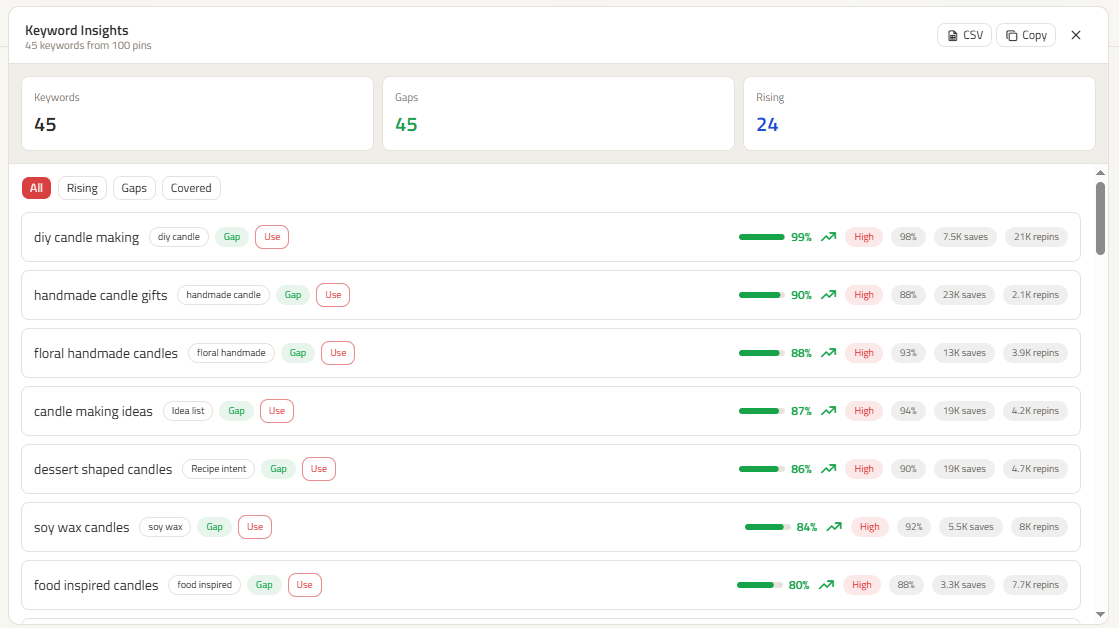
- Research Demand: Identify high-intent keywords using our Pinterest Keyword Research Tool.
- Batch Creative Assets: Transform each article into 5 distinct Pin angles using Pinterest Pin Copy.
- Plan Spaced Posting: Schedule pins across relevant boards using the Pinterest Content Planner to ensure steady, safe distribution.

Frequently asked questions
Is a Pinterest Business Account really 100% free?
Yes. Creating, maintaining, and claiming your website on a Pinterest Business Account is completely free. You are never required to run paid ads or enter credit card information unless you explicitly choose to launch Promoted Pin ad campaigns.
Should I keep my personal account separate from my business account?
If your personal account contains hundreds of unrelated boards (e.g., wedding ideas, personal recipes, outfit boards) that do not relate to your business niche, it is generally best to create a clean, dedicated business account or make personal boards secret.
How do I access Pinterest Analytics after creating my business account?
Once converted, click Analytics > Overview in the top navigation bar of Pinterest. You can filter data by claimed domain, date ranges, impressions, engagements, and outbound link clicks.