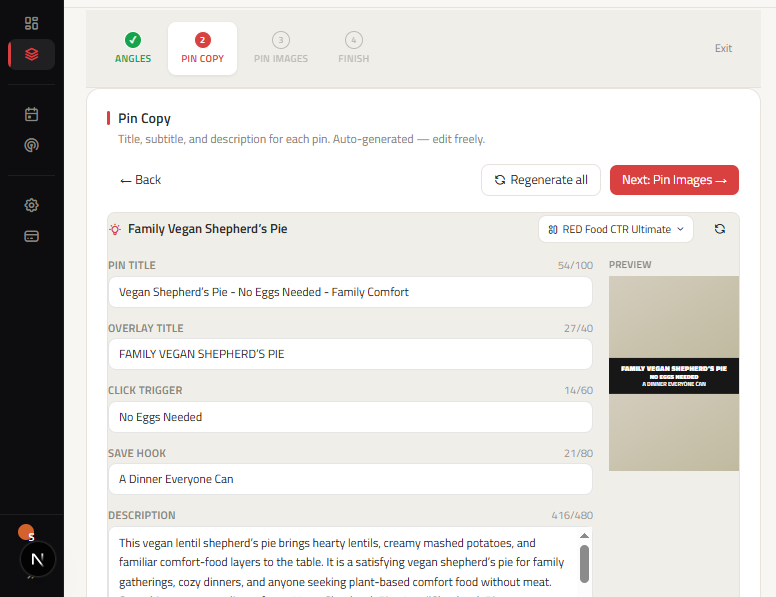
Pinterest pin copy has one essential objective: help the searcher understand why your destination article is worth opening. A Pin title, description, text overlay, and alt text should work as a unified promise without repeating the identical sentence across every field. ClickToPin manages those fields together so you can edit the complete message before creating visuals or assigning manual posting dates.
This is a dedicated Pinterest description generator and copy engine integrated into your content workflow. Rather than generating detached captions from a generic text box, you start with your article, audience, and approved Pin angles, producing messaging grounded in your actual destination content and brand voice.
How does a Pinterest description generator improve outbound clicks?
A Pinterest description generator crafts contextual 320 to 420 character summaries that align with your Pin's visual headline and destination page. By incorporating relevant keywords, specific benefits, and a natural call to action, it helps Pinterest's search algorithm categorize your Pin while giving searchers a clear reason to click through to your website.
Start with a real article and a specific Pin angle
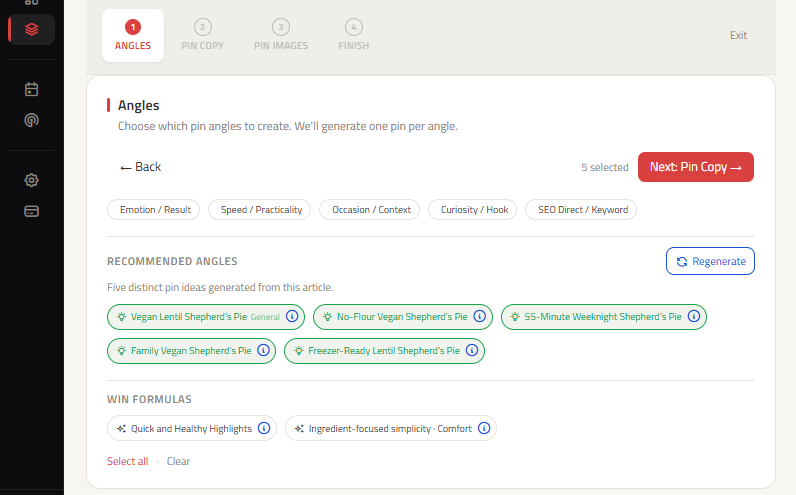
The strongest Pin copy begins with a concrete reason to click. That angle might be a fast weeknight dinner, a beginner tutorial, a seasonal gift idea, or a budget breakdown. ClickToPin creates distinct Pin angles directly from the destination article instead of asking you to brainstorm several captions from scratch.
Choose an angle that introduces a genuinely different entry point. For example, a recipe could feature a "make ahead" angle and a "5-ingredient" angle. A home decor guide could feature a "small space" angle and a "budget materials" angle. Both angles must be true of the destination page. Changing adjectives while making the same promise does not create useful variety.
Pinterest copy specifications and character limits
| Copy Element | Recommended Length | Optimal Structure & Purpose |
|---|---|---|
| Pin Title | 40–100 characters | [MAIN KEYWORD] - [PROOF / NUMBERED RESULT] - [EMOTIONAL QUALIFIER]; first 30–40 characters visible on mobile feeds |
| Pin Description | 320–420 characters | Contextual search bridge with secondary keywords, specific benefits, and 5–7 relevant hashtags |
| Overlay Line 1 (What) | Under 24 characters | Recognizable search topic or recipe name (e.g. LEMON CHICKEN ORZO) |
| Overlay Line 2 (Proof) | Under 24 characters | Concrete click trigger (e.g. Ready in 20 Minutes, 35g Protein) |
| Overlay Line 3 (Hook) | Under 24 characters | Emotional save reason (e.g. Better Than Takeout, Stay on Track) |
| Image Alt Text | 80–160 characters | Descriptive visual summary for accessibility and semantic entity recognition |
Write the title for fast mobile recognition
A Pinterest title must make the topic and primary benefit immediately recognizable. Position the main keyword near the beginning of the title where it remains visible in mobile grid feeds, then add specific qualifiers. For example, Easy Freezer Breakfast Burritos - Ready in 20 Minutes - Grab and Go Breakfast provides clear value to both searchers and algorithms.
Check that titles reflect the actual page content and match your brand voice. Avoid inflated claims, unverified superlatives, or keyword stuffing. Keep titles distinct across your Pin set so each variation represents a deliberate editorial angle.
Build a description with context and a natural next step
Your Pin description provides room to detail helpful specifics. Explain what the reader will find, include verified preparation details or key materials, and finish with a clear reason to open the destination page. Write for a real person deciding whether your content solves their problem.
For recipes, highlight cooking times, key ingredients, dietary constraints, or equipment. For tutorials, name required tools and skill levels. Avoid copying the article introduction verbatim. The Pin description is a concise bridge to your content, not a duplicate article.
Use overlay text as a visual headline
Overlay text is read directly on the pin image, often before the title or description. Keep each line under 24 characters so it remains legible on mobile screens without obscuring the primary photography. Make sure overlay copy adheres to the recommended Pinterest Pin size specifications.
A high-converting 3-line overlay follows a clear progression: Line 1 states the topic, Line 2 provides numbered proof, and Line 3 gives an emotional reason to save.
Keep alt text descriptive and accessible
Alt text describes the visual image for screen readers and search engines. Focus on describing the visible finished product in one natural sentence (80 to 160 characters). Do not paste keyword lists, URLs, or marketing calls to action into alt text.
Move finished copy into visual creation and planning
After verifying your copy package, proceed to image creation using the Pinterest Pin Generator to render visuals that match each approved angle. If you need new search opportunities before writing, run the Pinterest Keyword Research Tool.
Send finished Pins to the Pinterest Content Planner to assign scheduled manual posting dates. Distributing Pins across your calendar allows you to review each design, select the appropriate board, and track which angles earn organic engagement.
Frequently asked questions
How long should a Pinterest Pin description be?
Pinterest allows up to 500 characters, but the optimal length is between 320 and 420 characters. This provides enough room for keyword context, reader benefits, and 5 to 7 relevant hashtags without being truncated awkwardly.
Should I include hashtags in Pinterest descriptions?
Yes. Including 5 to 7 specific, relevant hashtags at the end of your description assists with topic classification without cluttering your main copy.
Can I generate Pin copy in languages other than English?
Yes. ClickToPin allows you to set a dedicated brand content language (including Spanish, French, German, Greek, and other supported languages) while keeping your account workspace in English.
Start generating coordinated Pin copy
Open an article in Workspace, select a distinct angle, and generate coordinated titles, descriptions, and overlay headlines that convert searchers into website visitors.