One blog article or recipe can serve multiple Pinterest searchers. A single destination page often has a practical angle, a budget angle, a beginner angle, or a seasonal benefit. A dedicated Pinterest pin generator allows you to turn that existing article into distinct, high-CTR Pins without rewriting your destination page or posting repetitive visual designs.
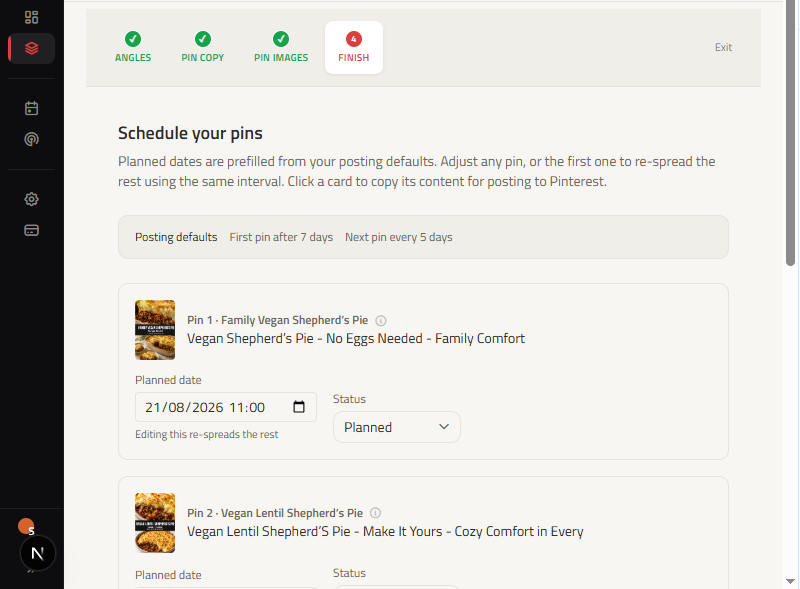
ClickToPin connects the entire creation workflow: start with an article, generate 5 distinct Pin angles, produce coordinated titles, descriptions, and text overlays, render 2:3 vertical visuals, and schedule manual posting dates in your content calendar.
How does an AI Pinterest pin generator work?
An AI Pinterest pin generator analyzes an existing article or blog post and extracts multiple distinct marketing angles, such as quick-tips, recipe-benefits, or seasonal use-cases. It then generates coordinated Pin titles, descriptions, overlay text, and 2:3 vertical visuals tailored for Pinterest's visual search algorithm, allowing you to publish multiple fresh pins without rewriting your content.
Start with the article, then choose distinct angles
Before generating graphics, discover what your audience is searching for using the Pinterest Keyword Research Tool. Once your topic is established, open the article in Workspace and move to the Pin step.
ClickToPin creates separate angles from the article's core premise, audience, and key benefits. Keep the angles that express genuinely different reasons to click or save, and remove anything that merely repeats the same promise in different words.
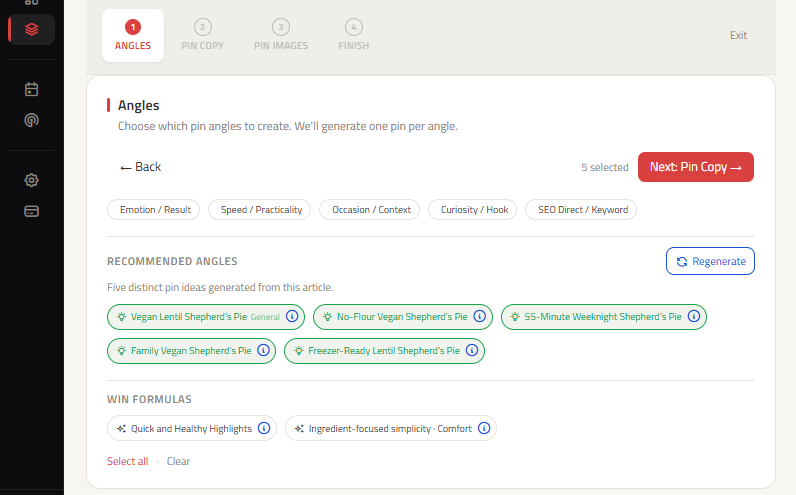
AI Pinterest pin maker: Coordinated titles, descriptions, and overlays
Each selected angle receives its own coordinated copy set via our Pinterest Pin Copy engine. Review the title, description, overlay text, and alt text together so the visual promise and destination page remain perfectly aligned.
The goal is a clear, specific reason for someone to save or visit the article, rather than a generic variation of the article headline.
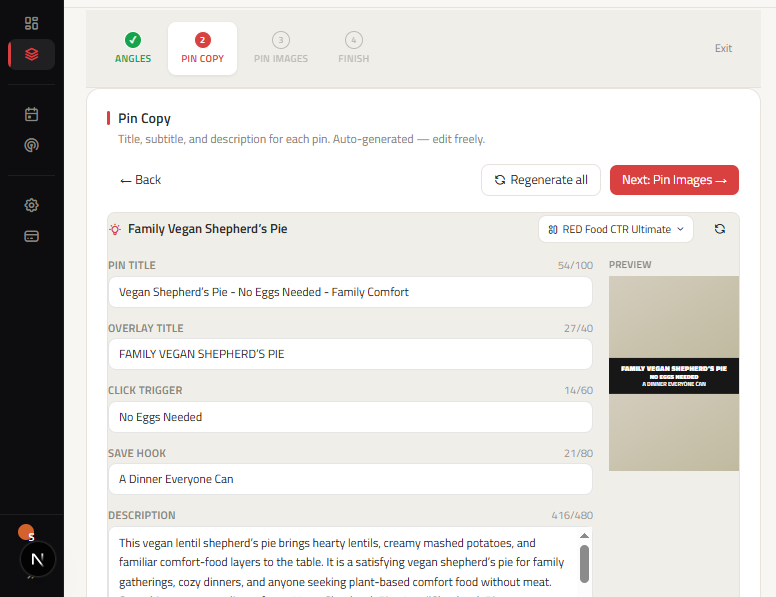
Create and choose the visual that fits the angle
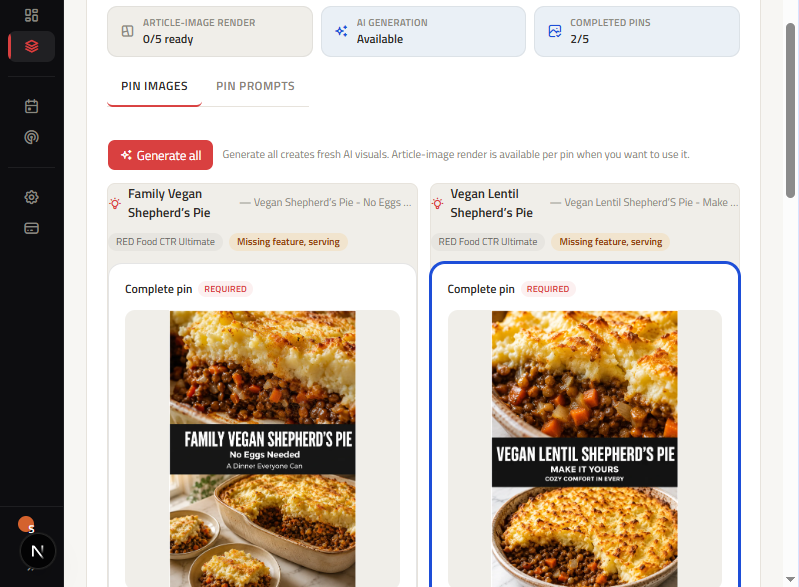
Continue to Pin Images to generate or upload the visual for each approved angle. ClickToPin uses a 3-zone visual layout formatted to the optimal Pinterest Pin size (2:3 aspect ratio, 1000x1500px).
Use the preview to verify visual hierarchy, text legibility on mobile devices, and whether the image directly supports the article's topic. Image generation connects directly to your brand's configured image provider, or you can upload your own custom photography.
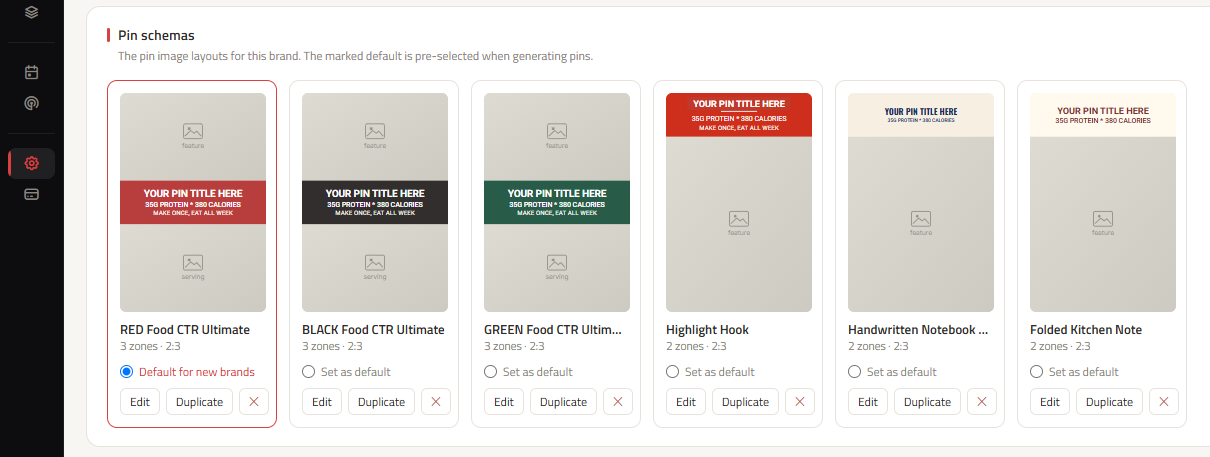
Branded 3-zone visual schemas
ClickToPin ensures all rendered graphics adhere to your brand visual guidelines. Use the schema customizer to configure headline typography, primary and secondary brand colors, badges, and 3-zone layout ratios for maximum readability on mobile devices.
Review finished Pins and queue for manual posting
Once visuals and copy packages are rendered, review the complete set of finished Pins side-by-side. Verify destination URLs, inspect mobile text legibility, and assign each Pin a scheduled manual posting date in your content planner.

Frequently asked questions
Can I generate Pinterest Pins without an article?
ClickToPin is designed as an article-to-Pin workflow platform. Starting from an existing article ensures that every Pin you create leads to high-quality, relevant destination content, which improves user engagement and prevents search penalties.
Does ClickToPin automatically post Pins to Pinterest?
No. ClickToPin intentionally uses a manual posting model. You plan and track scheduled dates in your Planner, review final designs, and publish directly to your verified Pinterest boards, keeping your account fully compliant with platform guidelines.
What is the best image format and size for Pinterest Pins?
Standard Pinterest Pins should use a 2:3 vertical aspect ratio, with 1000 x 1500 pixels being the recommended resolution. ClickToPin renders all visuals in optimized WebP format for crisp mobile clarity and fast loading.
What this Pinterest Pin generator does and does not do
ClickToPin helps turn an existing article into coordinated, editable Pin variations. It does not guarantee reach, saves, rankings, or traffic. It also does not automatically publish Pins: the final account, board, timing, and posting decision remain in your control.
Pinterest publishing guidance recommends reviewing visuals and details before posting. Use ClickToPin to prepare strong creative options, then make the final publishing decision yourself.
Create Pinterest Pins from your next article
Start with one article that is ready to publish, choose several distinct angles, and turn each one into an editable Pin you can schedule across your content calendar.